Help Center
Installation
How to install Serum 2 Preset
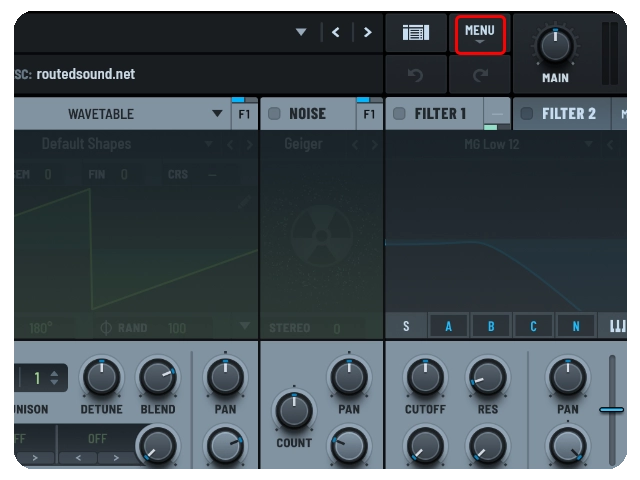
Step 1: Open Serum and click the “Menu” button in the top-right corner
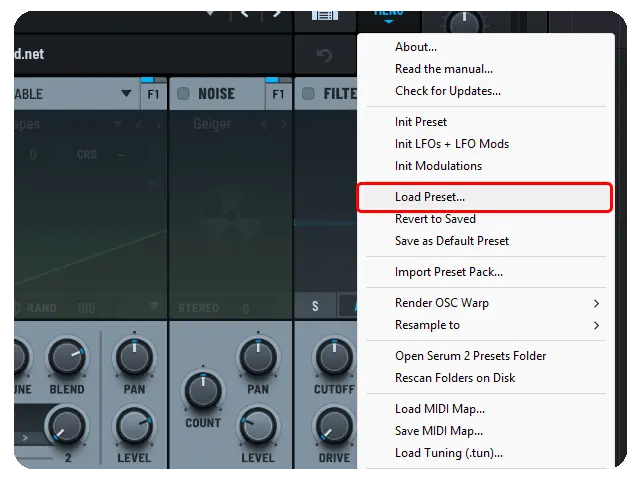
Step 2: Select “Load Preset” from the dropdown menu
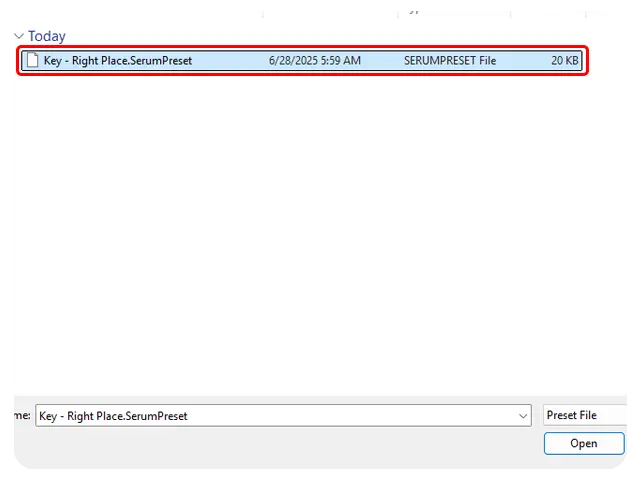
Step 3: Select the preset you want to import from your computer
Make sure you’re using the latest version of Serum to avoid compatibility issues. If the patch crash your DAW, cause crackling, or won’t load, it’s likely because your version of Serum is outdated
Please note that we didn’t develop Serum. For updates or help with Serum itself, reach out to developer at: https://xferrecords.com/
How to install Vital Preset
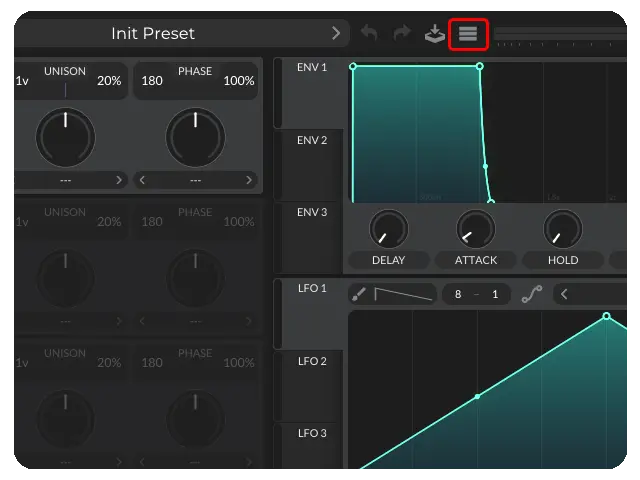
Step 1: Open Vital and click the hamburger icon in the top-right corner
Step 2: Select “Open External Preset” from the dropdown menu
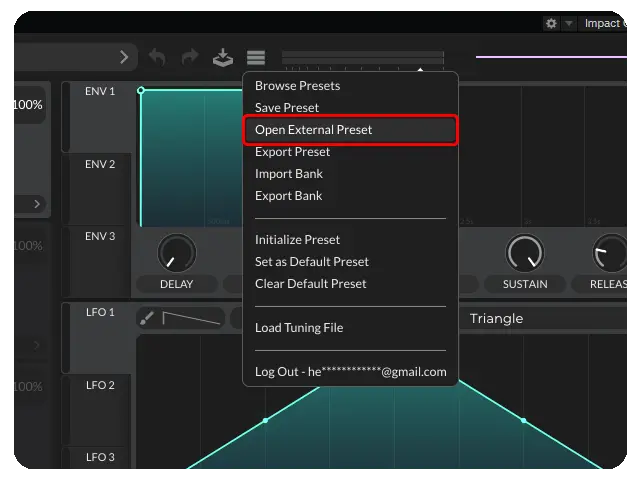
Step 3: Select the preset you want to import from your computer
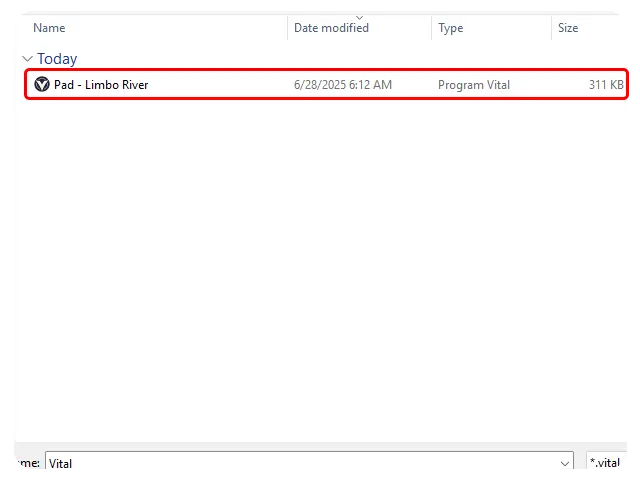
Make sure you’re using the latest version of Vital to avoid compatibility issues. If the patches crash your DAW, cause crackling, or won’t load, it’s likely because your version of Vital is outdated
Please note that we didn’t develop Vital. For updates or help with Vital itself, reach out to developer at: https://vital.audio/
How to install Sylenth1 Preset
Step 1: Open Sylenth1 and click the “MENU” button in the center menu
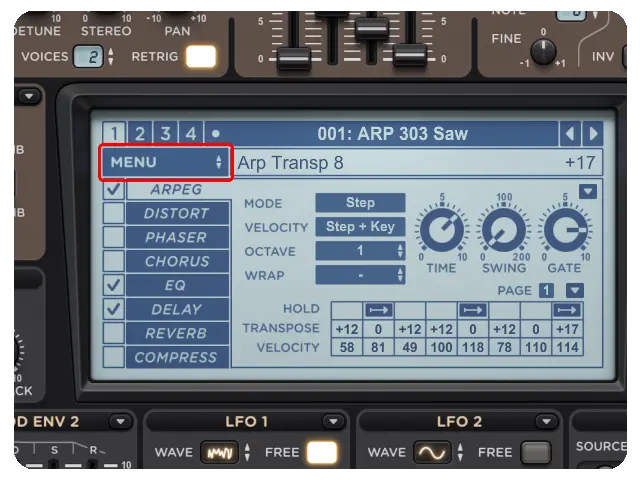
Step 2: Select “Preset > Load” from the dropdown menu
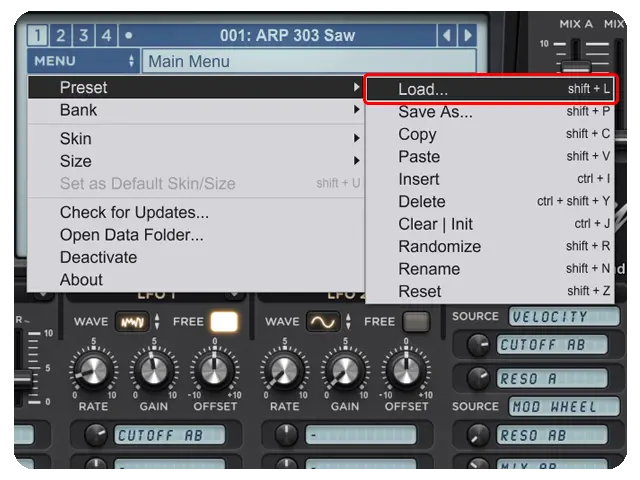
Step 3: Select the preset you want to import from your computer
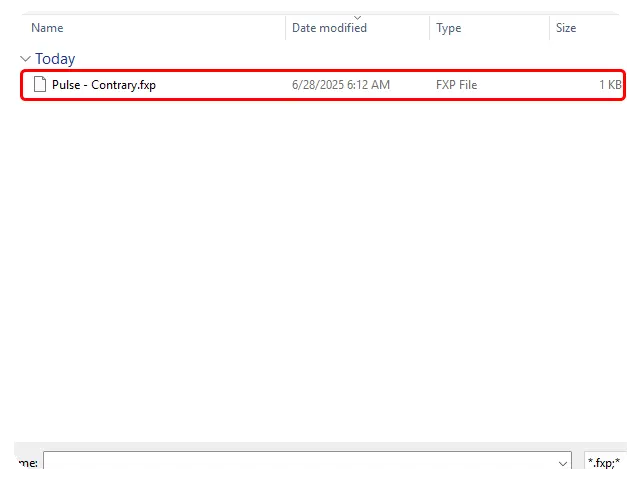
Make sure you’re using the latest version of Sylenth1 to avoid compatibility issues. If the expansion crash your DAW, cause crackling, or won’t load, it’s likely because your version of Sylenth1 is outdated.
Please note that we didn’t develop Sylenth1. For updates or help with Sylenth1 itself, reach out to the developers at: https://www.lennardigital.com/
How to install Spire Preset
Step 1: Open Spire and click the “LIBRARY” tab in the top-left corner
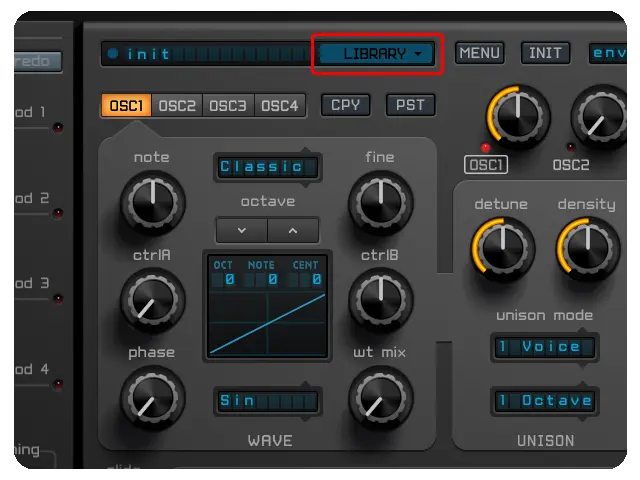
Step 2: Click the “User Library” folder
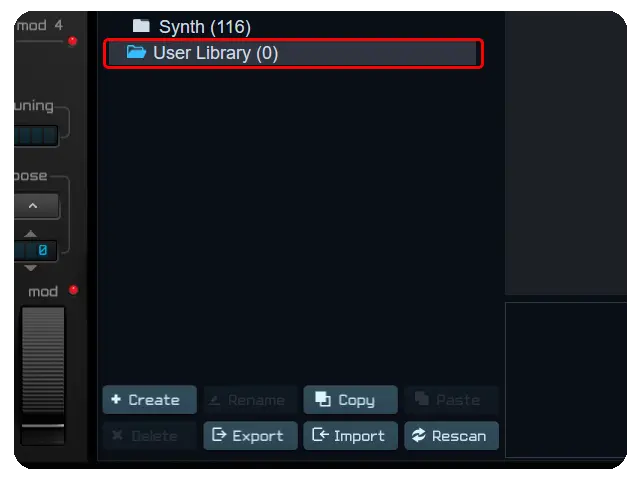
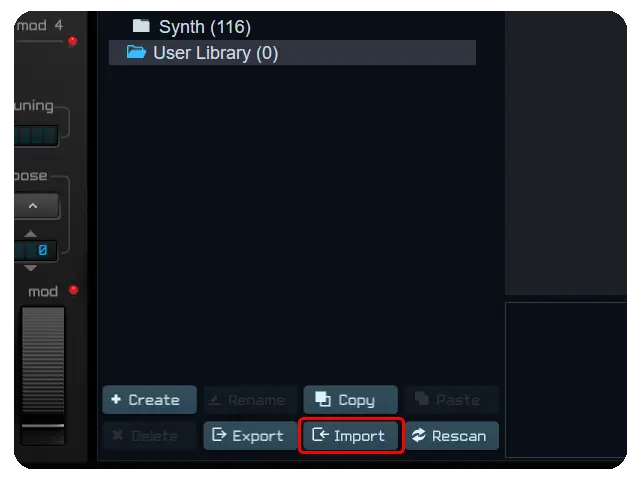
Step 3: Click “Import” from the bottom
Step 4: Select the preset you want to import from your computer
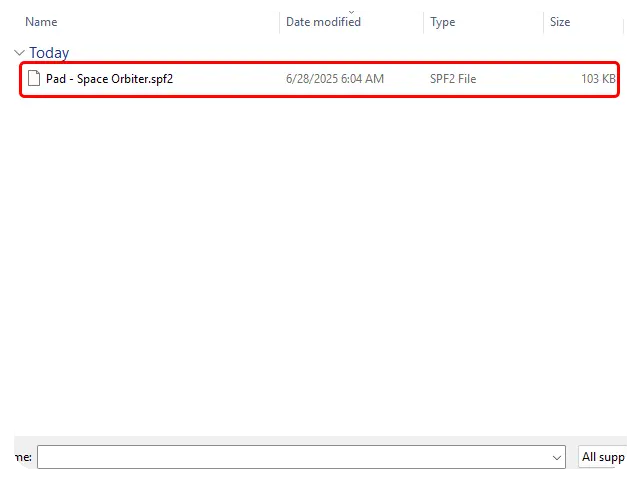
Make sure you’re using the latest version of Spire to avoid compatibility issues. If the patch crash your DAW, cause crackling, or won’t load, it’s likely because your version of Spire is outdated
Please note that we didn’t develop Spire. For updates or help with Spire itself, reach out to developer at: https://www.reveal-sound.com/
How to use the MIDI files
1. Import the MIDI File
- Drag and Drop: Most DAWs allow you to drag a MIDI file directly into the project window.
- New MIDI Track: Some DAWs require you to create a MIDI track before importing.
2. Assign a Virtual Instrument
- MIDI files only contain note data, not actual sounds. Assign an instrument (synth, sampler, VST plugin) to hear anything.
- Load a virtual instrument like Serum, Sylenth1, or your DAW’s built-in synth.
- Drag the MIDI clip onto the instrument track.
3. Edit MIDI Data
- Open the MIDI Editor/Piano Roll to modify notes, velocities, and timing.
- Quantize the notes for better timing if needed.
- Adjust MIDI CC (control changes) like modulation, pitch bend, and sustain.
4. Change Sounds or Instruments
- Try different presets or virtual instruments for unique sounds.
- Use multiple instrument layers for a richer effect.
IMPORTANT: Please be aware that some of our MIDI files are not copyright-free. You cannot use them directly without modification, as they are solely intended for demonstration purposes.